How to split a photo across a double-page spread
Hello Susan
You asked how I get a single photo to run right across two facing pages of a Micro-Memoir. It’s one of those things that looks like clever design and is actually almost embarrassingly simple. There’s no special software involved.
I do it two ways: on my Mac, or on my phone. I’ll show you both.
Before the how, the why
This is a spread from one of my own books, A Speccy Man Has A Breakdown:
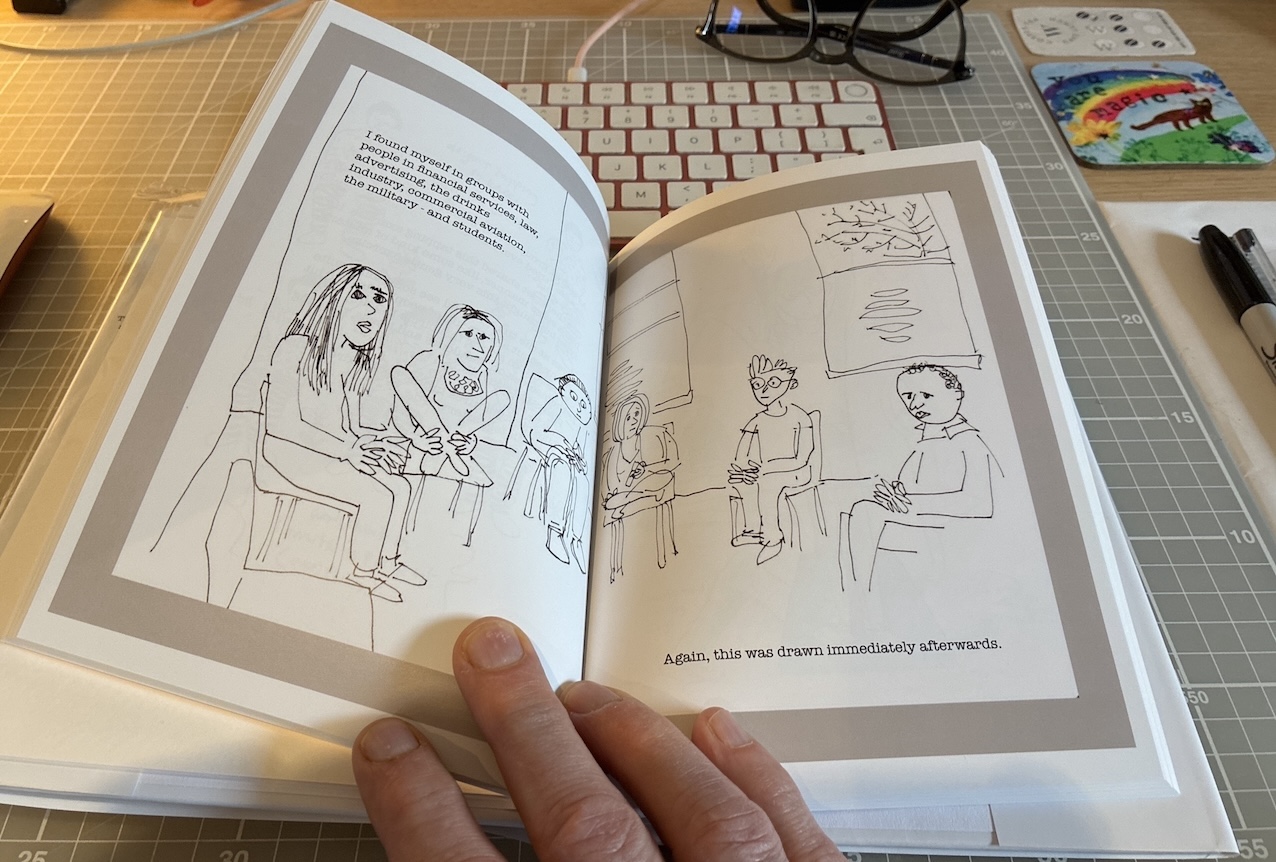
The picture takes over the whole book for a moment. You have to open the covers wider to take it all in. A photo sitting neatly on one page stays polite; a photo that crosses the fold becomes an event.
***
So here’s the trick. You start with one wide photo – a landscape-shaped one – and cut it into two tall halves. The left half goes on the left-hand page, the right half on the right, and when the book is open the two halves join back up into a single, continuous view.
Do it on a desktop computer
Here’s a wide photo of mine, open in Preview, the picture program that comes free on every Mac:
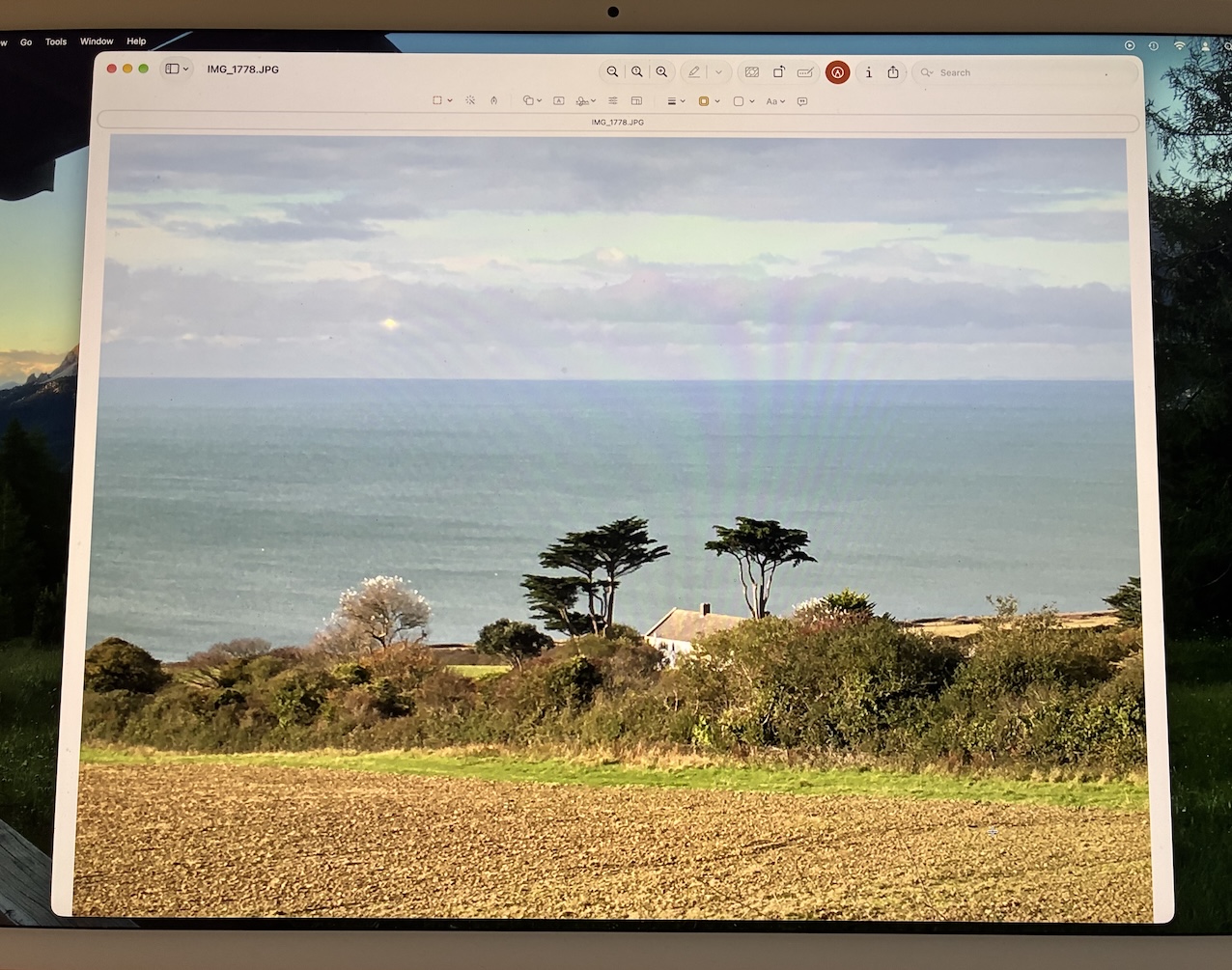
To turn this into two separate upright (portrait-format) images, I follow these steps on my Mac:
- Open the photo in Preview – double-clicking the picture usually does it.
- Drag a rectangle over the right-hand half: hold the mouse or trackpad down and drag, and a dotted box follows.
- Press Command and C together, to copy the bit I’ve selected.
- Press Command and N together. Preview makes a brand-new picture out of whatever I just copied.
- Save that, with an obvious name like “Sea view RIGHT”.
Then I do the same again for the other half, and call it LEFT. Two drags, a few keystrokes, and I have two new pictures.
Here they are: “Sea view LEFT” and “Sea view RIGHT”, sitting side by side:
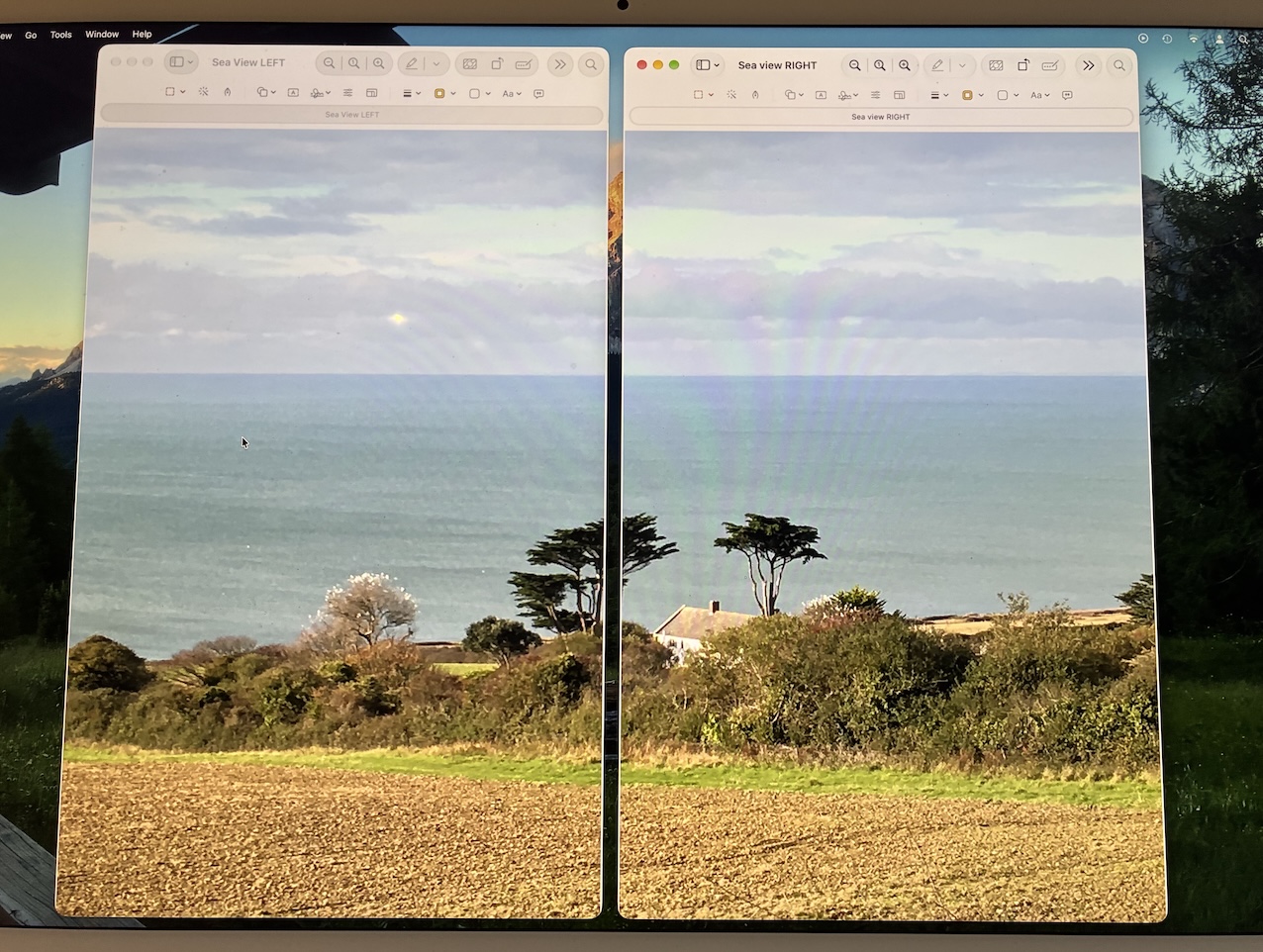
Look closely and you can see my cursor over the sea in the left-hand pic.
***
Now the even simpler version. This is the one I’d suggest if you don’t fancy fiddling about with a computer at all, because you do the whole thing on your phone using nothing but the screenshot button.
Do it on a phone
Open your landscape photo in the ordinary photos app:
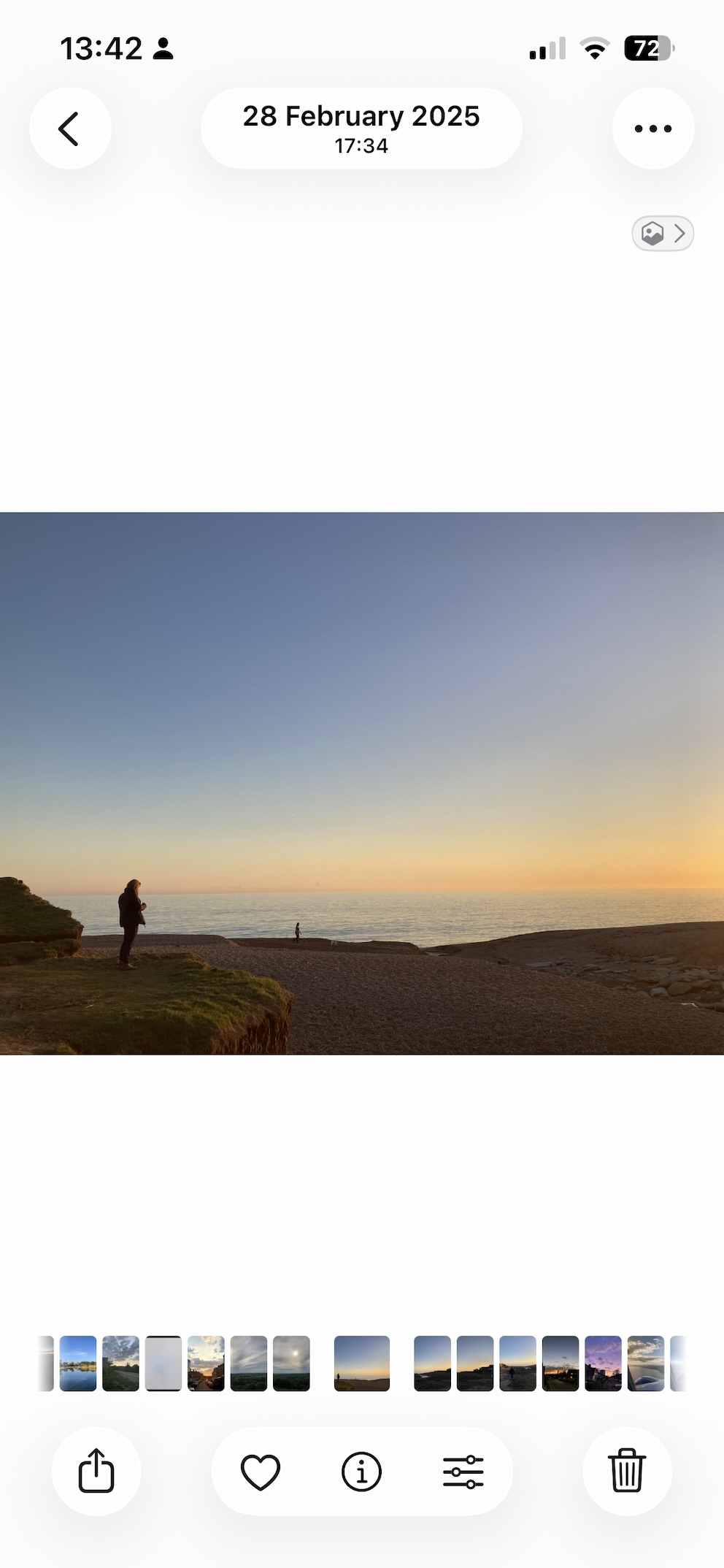
Now pinch to zoom in, so the picture fills the height of the phone, and spills out of the side. Position the picture so that the left fills your screen and take a screenshot:
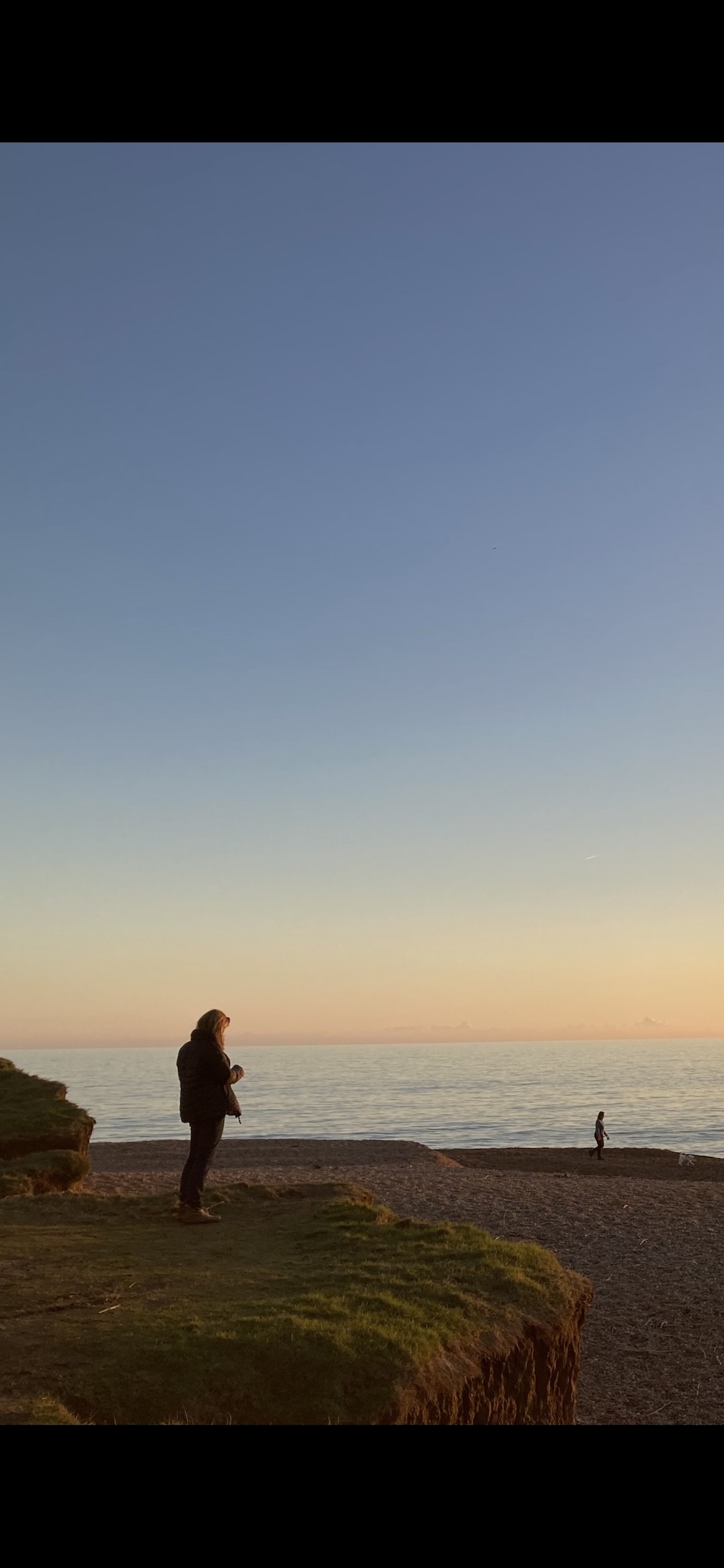
That’s captured the first half.
Then drag the picture sideways with your finger until you’re looking at the other end of it, and take a second screenshot:
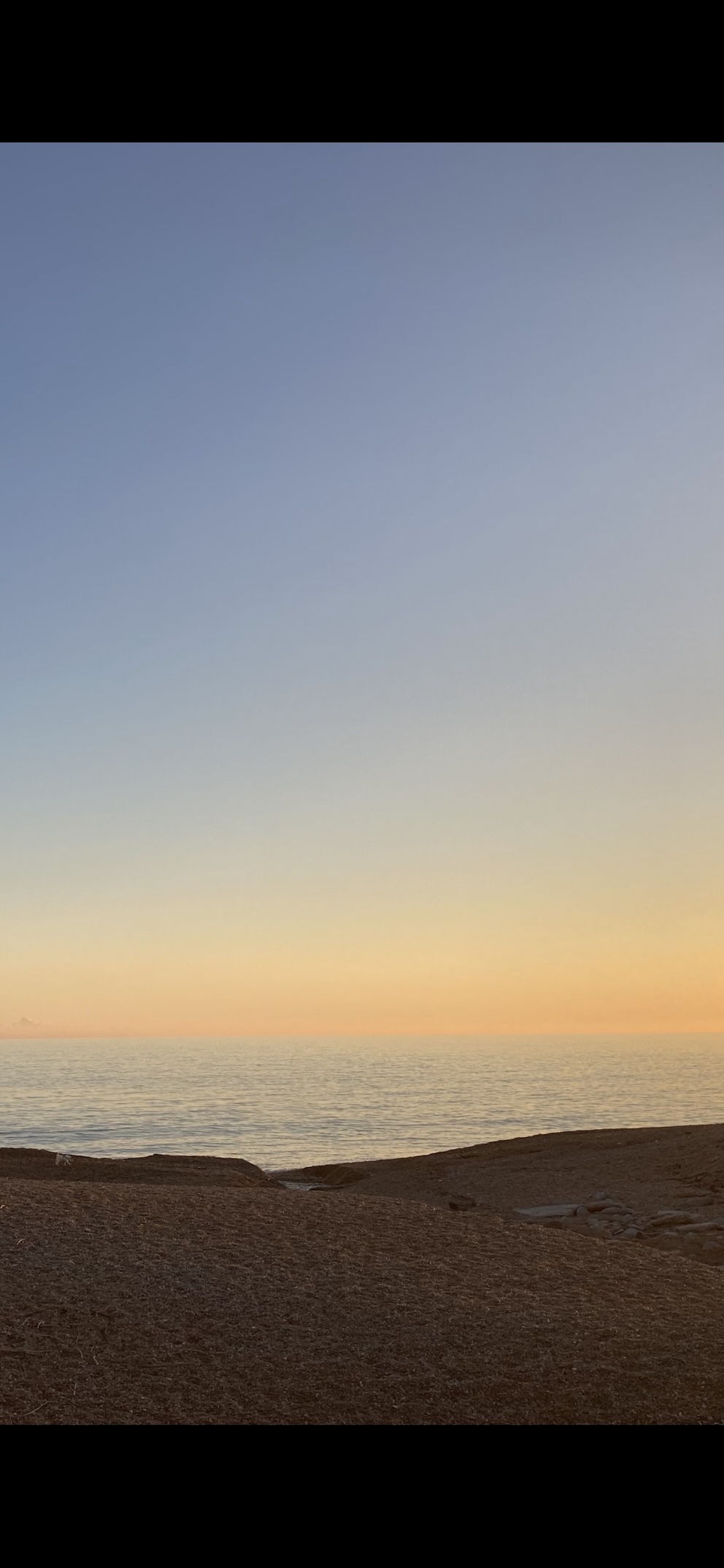
That’s the right-hand half – two screenshots and you’re done.
***
A few things I’ve learned that make it look better, whichever method you use:
When you are splitting the picture, don’t fret about hitting the exact middle. If anything, let the two halves overlap by a whisker, so a thin strip of the picture sits on both pages.
An overlap looks seamless; a gap looks like a mistake – and the fold of the book swallows a few millimetres anyway.
Choose images that are stronger on the right. The right-hand page is what the eye lands on first. If one half comes out rather empty – all water, all sky – don’t throw it away. An empty half is a gift. It’s the perfect place to write a few words. (Example of that here.)
***
That’s it. The Mac steps are the ones I can vouch for by hand, but the phone screenshot trick is the one anybody can do on anything, so nobody’s left out.
If you work out a neat way of doing it on your own device, do tell me, and I’ll pass it on to everyone else.

JPF