An A4 template for your micro-memoir
A page for words and a page for a picture, with the type already set
This is for people on my Micro-Memoir course. It’s a template for the pages of your book: one page for words, one page for a picture, with the type already set.
It opens in Google Slides, Keynote and PowerPoint.
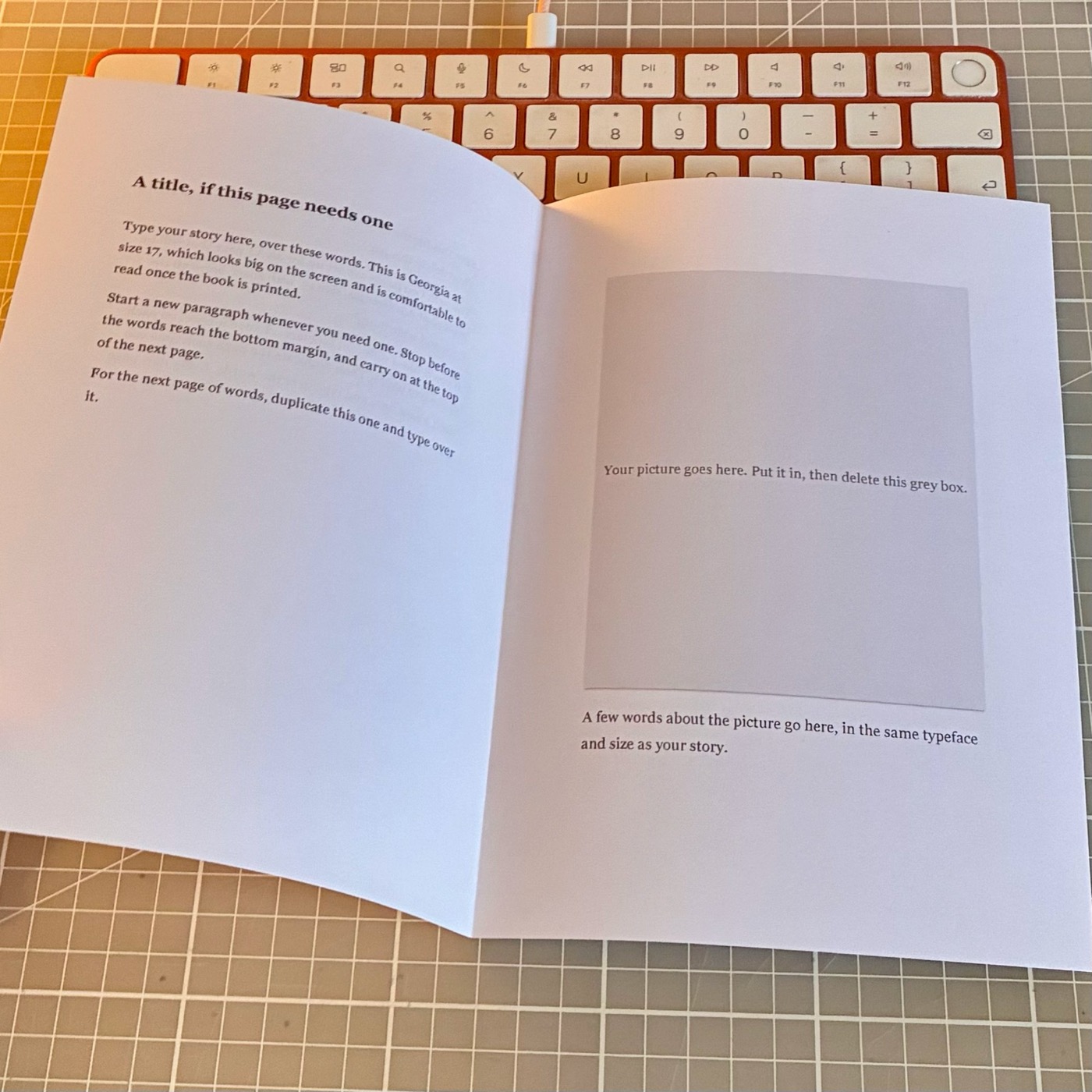
Here it is, printed as an A5 booklet:
What’s in it
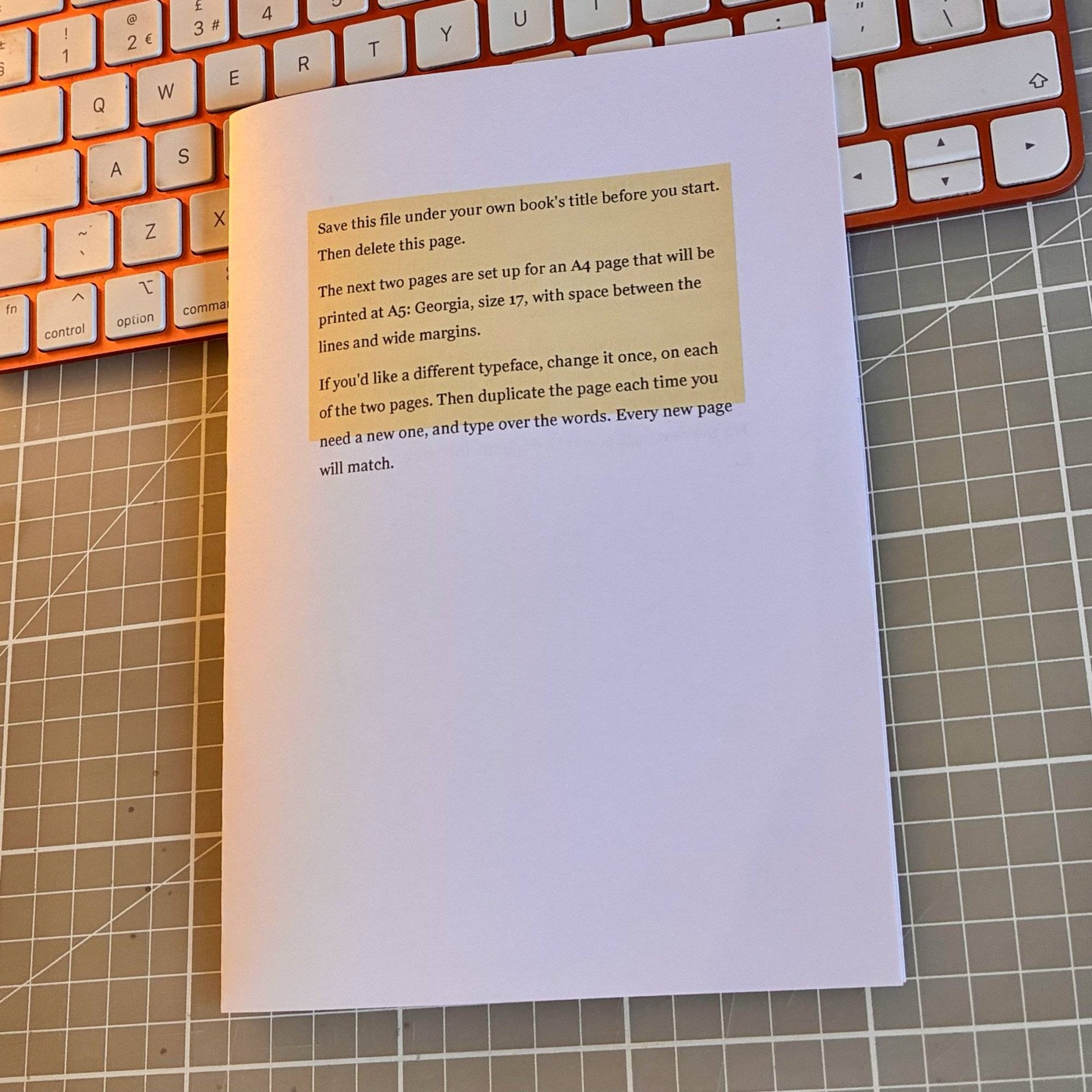
Three pages:
- A note from me, which you delete
- A page for words, with a title
- A page for a picture, with a few words beneath it
The words are in Georgia at size 17, with titles at 22, space between the lines and wide margins.
The pages are A4, the usual page size. Your book will be printed at A5, and A4 shrinks to A5 exactly: same shape, half the size. So size 17 looks big on the screen, and comfortable in the book.
Open it in Google Slides
- Download the template, using the link above.
- Go to slides.google.com and start a new presentation.
- Go to File, then Open.
- Choose Upload, and pick the template from wherever your downloads go.
It opens as a presentation of its own.
In Keynote or PowerPoint, open the file in the usual way.
Make it yours
- Give it your own book’s title: click the name at the top left, and type.
- Delete the first page, the one with my note on it.
- If you’d like a different typeface, change it now, once, on each of the two pages. Click in the words, select them all (Cmd+A on a Mac, Ctrl+A on Windows) and choose your font in the box that says Georgia.
How to choose a typeface, and what else to think about: Typography for your micro-memoir.
Duplicate it for every new page
When you need another page, don’t start from scratch. Copy one you’ve got.
- In the column of pages on the left, right-click the page.
- Choose Duplicate slide. A copy appears below it.
- Click in the words on the copy and type over them.
Every new page starts in your typeface and your size. Make a brand new text box instead, and Google gives you Arial again.
On the picture page, put your picture in (Insert, then Image, then Upload from computer), and delete the grey box.
More about Google Slides:
- Pictures on a page, without a Mac
- Your own font, in Google Slides
- Moving things together, in Google Slides

JPF